Having trouble messaging a LinkedIn ™ contact? Want to try voicemail, but can’t find the icon? Plus, wondering if messaging is really private? In short, you’re not comfortable with LinkedIn™ messaging and it’s causing a little frustration. LinkedIn ™ is one of the most influential social networks in the world in the professional context, learn how to use this communication tool! Thanks to our advice and tips, find all the answers to your questions in our article! This time for sure, LinkedIn ™ messaging will have no more secrets for you!

LinkedIn™ messaging, what are its features?
LinkedIn™ messaging is instant messaging that allows you to exchange with one or more users, on computer, mobile or tablet. Thanks to this communication tool, conversations are more fluid than by email.
All LinkedIn™ messages are displayed in a dialog box and your contact is notified of your reply with an audio and visual notification. Also, when the message is forwarded to your prospects, customers, or connections, an icon like this ☑ will appear to the left of your message.
The main features of LinkedIn™ messaging are:
- instant messaging;
- sharing a photo or document;
- inserting a GIF or emoji.

Send instant messages from LinkedIn™ inbox
Of course, the messaging system of the first professional social network in the world naturally allows you to send a message as part of contacting a user or simply to chat with your network.
Sending LinkedIn™ messages is a useful feature for:
- Create and maintain a link with the people in your network;
- Discuss with your partners or colleagues;
- Prospect new clients on LinkedIn™ and convert leads and prospects by making contact or by making follow-ups;
- Find a job ;
- Recruit new employees to strengthen your team;
- Discuss with your network on various subjects (bounce on a post for example).
Would you like to attract between 1 to 10 professional clients per month? Thanks to our 100% free Webinar, you will master the power of LinkedIn™ step by step, and boost your performance!
Record voice messages
It’s the trendiest way to send and read messages! Voice messages are available on LinkedIn™ (mobile app only) and that’s one of the good things about LinkedIn™ messaging. Voice messages are now essential on many applications, but also in a personal and professional context.
So why such enthusiasm for the voice message?
It’s raining, you’re on the move or you don’t have your hands free to capture your content? Send a voice message! Just press the little microphone next to the input bar and talk! Simple as pie, this type of message can be used to communicate with your relations, your friends, but also your customers, on behalf of your company.

The voice message offers another communication experience, more human and concrete than sending text messages. Finally, it almost comes down to chatting in real time with the people of your choice!
Compared to manual entry, it’s also a much faster way to send responses to multiple people. You save considerable time and therefore you are more efficient!
Just like a traditional message, readers receive notifications when they receive your voicemail message.
For your customers and prospects, it can be even more reassuring to hear you speak directly. By your voice and the way you express yourself, they perceive your professionalism and who they are dealing with!
Share Attachments on LinkedIn™ Inbox
Convenient for sending your colleague’s schedule, a report of the quarterly meeting or the latest news from your company, LinkedIn™ messaging allows you to exchange images and files.
It is possible to send several documents provided they do not exceed 20 MB per sending. For formats, LinkedIn™ messaging supports:
- CSV, XLS, XLSX, DOC, DOCX, PPT, PPTX, PDF, TXT, HTML, HTM for documents;
- GIF, JPEG, JPG, PNG, BMP for images.
Personalize your messages with emojis and gifs
Are you having a friendly conversation with someone in your network and you want your responses to be more friendly and lively? Use emojis and/or gifs!
Emojis are virtual characters known to everyone. However, they are not reduced to simple yellow men displaying several expressions. Emojis also include other symbols to illustrate various subjects: nature, meals and drinks, activities, travel and places, but also objects and symbols, there are 2823 of them!

Gifs are ultra famous in the world of digital message animations. A gif is an animated digital image of only a few seconds, which illustrates the reactions of everyday life, in an exaggerated and amusing way. Gifs are usually moments from movies, series or music videos, captured and streamed.
Gifs are used in rather casual conversations, to amuse the recipient, to send him a message in a humorous way.
To find the gif or emoji you need, do not hesitate to enter the keyword directly in the search bar!
LinkedIn ™ is a professional social network, beware of adding excessive emojis and gifs in a post, message or comment. Their use depends on your sector of activity and the link you have with your interlocutors.
LinkedIn™ messaging on mobile
How do I access LinkedIn ™ messaging from the mobile app?
To open your inbox and find all of your conversations, start by opening the LinkedIn™ app and logging into your profile. Then it happens at the top, to the right of the search bar. Messaging opens when you touch a chat bubble logo with three small dots inside.
You find all of your conversations and messages, regardless of their number and length.
What are the features of the mobile interface?
The mobile version of LinkedIn™ messaging is used much more than that coming from a browser like Google Chrome™. Indeed, its interface is more intuitive and the ability to send voice messages is more attractive.

Here are the things you can do from mobile messaging :
- Continue your ongoing conversations.
- Send a message to one or more people to start a new discussion. Select the logo representing a pen in a square, at the top right of your screen. Then type the contact’s name and click on it when it appears. This is then surrounded by a green bubble. To send a group message, add other users after.
- Search for a LinkedIn ™ conversation from the search bar at the top of the screen.
- Take care of the management of your messages and conversations by clicking on the three points aligned in height, in the menu at the top. Delete, archive, mark as unread, but also configure your absence message, all these features are easily achievable.
- See LinkedIn ™ message requests sent to you. Message requests are invitations to chat from people outside your network.
LinkedIn™ desktop messaging
Two interfaces available
From a computer and a browser like Google™ Chrome, LinkedIn™ messaging looks different. There are two interfaces available:
The first is at the bottom right of your news feed:
- A small “Messaging” window is present;
- When clicked, the window becomes a drop-down menu that contains your LinkedIn ™ chats and messages;
- To send a reply and continue chatting, click on the conversation and a new window will appear at the bottom, next to the messenger.
The second is located in the menu, at the top, “Messaging” tab:
- Your chat space now spans your entire screen;
- From here, more features are present.

To find out if the person has seen your LinkedIn™ message, continue reading this article, we’ll talk about it in a moment!
What are the features of LinkedIn ™ desktop messaging?
Just like on the LinkedIn™ application, it is possible to:
- Continue your ongoing conversations.
- Start a new conversation with one or more people.
- Search for a LinkedIn ™ conversation from the search bar at the top of the screen.
- Delete, archive, or mark the conversation as unread.
- See LinkedIn ™ message requests.
- But also to share by email and forward the message to other people. Just click on your message and then select the three little dots.
- If you click on “Share by email”, you land directly in your mailbox.
- Attention, it is not possible to send a voice message from a computer!
Send an InMail LinkedIn™
To send LinkedIn™ messages, it is necessary to be connected, that is to say to belong to the recipient’s network. If not, send them an invitation or sign up for LinkedIn™ Premium.
Indeed, it is possible to send Inmails (messages) to anyone thanks to LinkedIn ™ Premium . It is an effective tool for mass contacting leads and prospects.
However, be aware that even with a LinkedIn ™ Premium account , it is not always possible to send an Inmail to a person! Indeed, in the LinkedIn ™ settings, it is possible to manage your preferences and activate the option “Do not receive Inmail”. In this specific case, the only way to contact the user is to send them a LinkedIn ™ invitation and then, if they accept, to contact them by message.

How do I know if the person has seen my LinkedIn™ message?
As with a mailbox, LinkedIn™ offers a function equivalent to the acknowledgment of receipt. Thanks to it, you know if the person has seen your message or not. On a computer or on your smartphone, here is how to activate this trick:
- Start by logging into your LinkedIn ™ account, then click on your profile picture , in the menu at the top on a computer or at the top left on a smartphone;
- Select “Preferences and privacy” then “Communications”;
- Under “Messaging experience” scroll down to “Read receipts and typing indicators”;
- Just click on the button which then turns green.
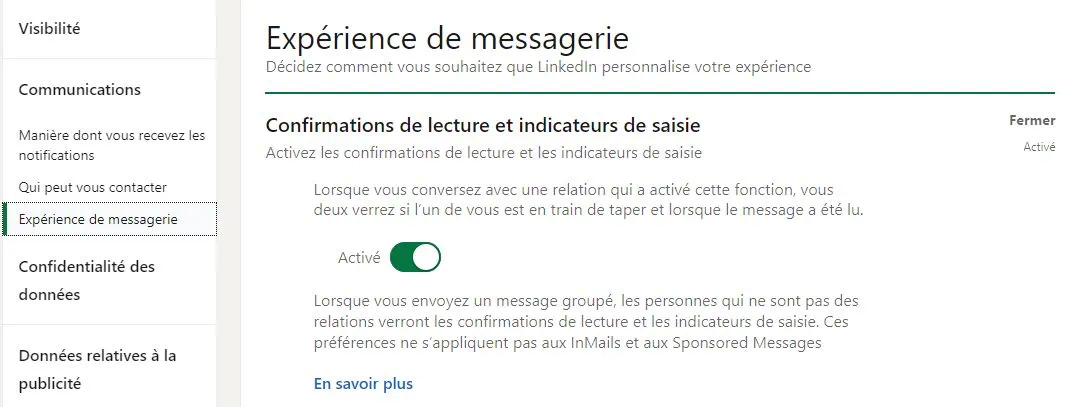
From now on, you know when your contact has seen your LinkedIn ™ message. Indeed, the thumbnail of his profile picture appears below it (bottom right of the message).
Can I delete or edit a message sent from LinkedIn ™ inbox?
Did you get the wrong recipient? Don’t want your boss to receive your gif? Your LinkedIn™ message is ultimately not suitable for this professional social network? Do not panic ! If you sent the message less than 60 minutes ago, then there’s still time to delete it!
Indeed, on LinkedIn ™ , the messages sent can be modified and deleted, but be careful, only within an hour! Regardless of the medium of use, these features apply both to the website and to the application.
However, when you perform an action on a sent message, the recipient is notified of this change. Concretely, he does not have access to the deleted content, but he sees that you have deleted or modified it thanks to a bubble indicating “This message has been deleted” or “This message has been modified”.
To delete or edit a post on LinkedIn ™:
- Press for a few seconds or place your mouse over the message in question;
- Click on the three dots, next to the emojis;
- Depending on the action to be performed, choose to modify or delete the message.
How do I send a group message on LinkedIn ™ ?
To send the same message to several LinkedIn™ contacts or create a discussion group, regardless of the navigation medium you use:
- Log in to your LinkedIn ™ account then go to your email;
- Click on the icon representing a pencil in a square. On the phone, it is located at the top right while on the computer, you find it in the right part of the screen;
- Enter the names of the contacts to add and name the group, for example “Project study team”;

That’s all ! Members added to the group now see each of the messages added to the thread and are notified of them through notifications.
How do I forward a message on LinkedIn ™ ?
To forward a message from LinkedIn™ inbox:
- Position your mouse or touch the message to transfer;
- Select the three small dots that appear next to emojis;
- When this is done, click on “Forward” then type the name of the person or persons to whom you want to forward the message;
- The added members then receive a message notification from you. They can view shared content, and they also see who posted that post!

Which LinkedIn ™ Message Automation Software?
If LinkedIn™ is your main prospecting tool or if you use email as part of your business, choose automation software! In concrete terms, this digital tool makes it possible to gain in performance and speed thanks to numerous features. This is what Waalaxy™ offers with its Piwaa™ software.
Schedule reminders, automate the sending of messages, respond faster by simply selecting the most appropriate response, in short, a real tool that stores data like a mini crm.
Piwaa ™ is an ideal alternative if you are unfamiliar or unfamiliar with the LinkedIn™ messaging interface and want to simplify its use.

LinkedIn ™ messaging to conclude
- From the messaging system, you converse in writing, but also by voice, thanks to the voice message function, available only from a smartphone. It also allows you to attach emojis, gifs, images and documents to your messages.
- Messaging and its functionalities (archive, modify, delete, converse, manage, etc.) are available from the application, but also directly on the website, in the desktop version.
- To send messages on LinkedIn™, you must be connected with the person. Otherwise, LinkedIn™ Premium is required to send Inmails, regardless of your degree of relationship.
- It is possible to activate the read receipt, in order to check whether or not your recipient has seen your message. To do this, go to “Preferences and confidentiality” then “Communications”. Under “Messaging experience” scroll down to “Read receipts and typing indicators”. Activate the button by clicking on it, done!
- On smarthpone or computer, to delete a message on LinkedIn™, be quick! Indeed, it is possible to modify or delete a message, but only within 60 minutes of sending it!
- If you are not comfortable with this communication tool or if you want to save time, know that there are very powerful and intuitive task automation software. This is the case of Piwaa™ which offers, for example, the sending of reminders, connection messages or prospecting automatically!
LinkedIn™ messaging to summarize in 5 questions
How does LinkedIn™ messaging work?
LinkedIn™ messaging is instant messaging for communicating with people in your network. It is possible to chat with a company profile or your personal account. Additionally, messages on LinkedIn ™ are private. On this famous social network, you send a message to only one person or on the contrary, a large number of profiles. A notification notifies members that a new message is available on the thread.
How do I see on LinkedIn™ if a message is read?
To see if the people to whom you send messages have seen them, you must first activate a function similar to the acknowledgment of receipt. For that :
- Connect to your LinkedIn ™ account from your smartphone or your search engine;
- Click on your profile picture, top left on the mobile version, top right on computer;
- Go to “Preferences and confidentiality” then to the “Communications” section;
- In the “Messaging Experience” section scroll down slightly to the heading “Read Receipts and Typing Indicators”;
- Below, a button is disabled. Just touch or click on it to activate it.
Now, if your contact has seen your message, their profile picture thumbnail appears below the bottom right of your sent message. Until the small thumbnail is displayed, your message has not been read.
How do I send a private message on LinkedIn™?
To send private message(s) to a user on LinkedIn ™:
- Go to their profile, then click on the “Message” bubble, just below their presentation;
- If you are already connected on the social network, the conversation appears automatically, if not, you must subscribe to LinkedIn ™ Premium to send an Inmail (or send him a connection invitation).
Is LinkedIn™ messaging private?
LinkedIn ™ messaging is a private space for discussions. It allows you to exchange fluidly and instantly with the members of your network. In other words, when you converse with a LinkedIn ™ user via messaging, you are the only 2 people who can see the conversation.
Who can see my messages on LinkedIn™?
Messages you send through your LinkedIn ™ inbox are private, only the recipients can see them. However, being connected with people is necessary to send a file or message.